



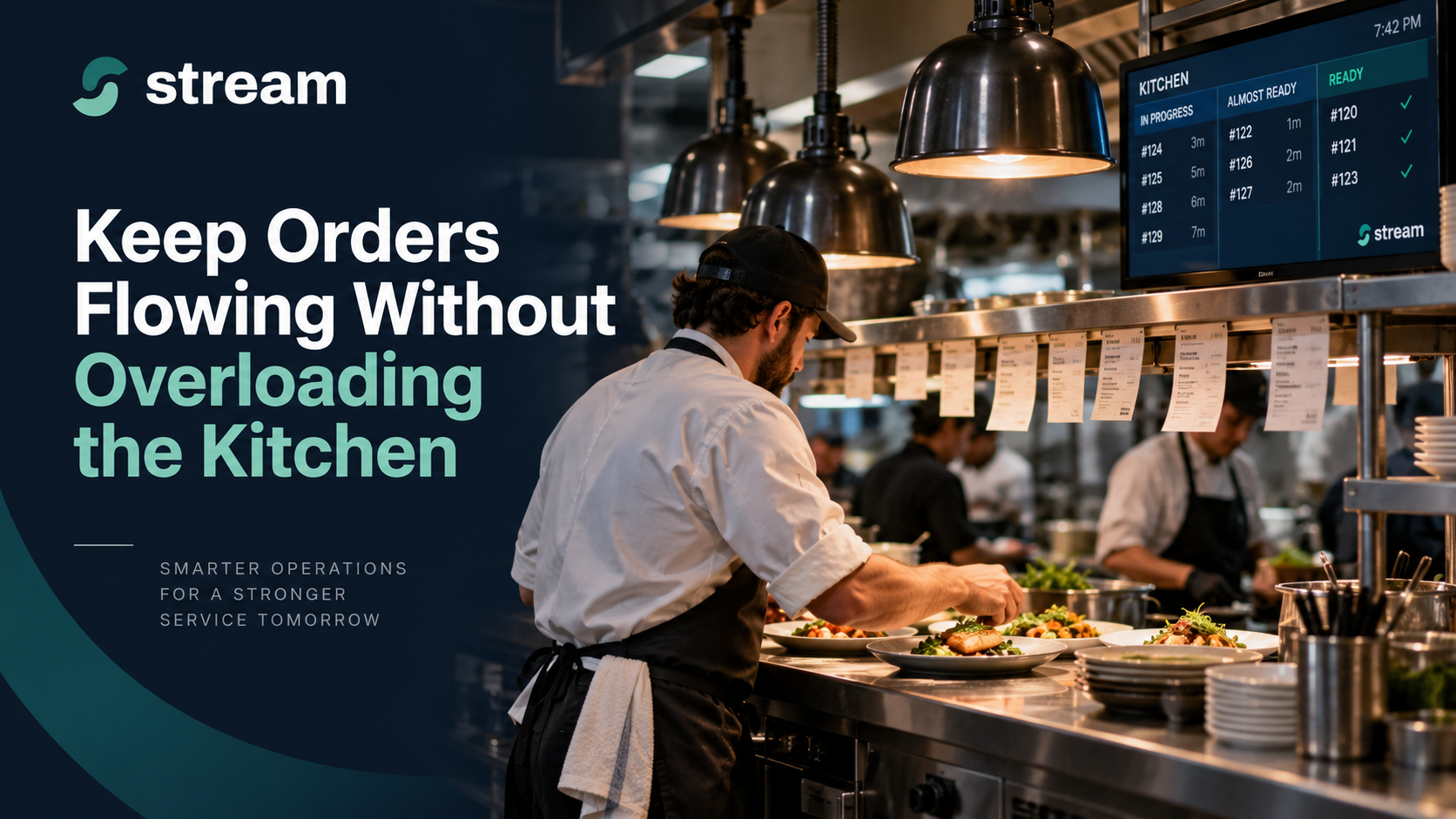
Stay in Control When Your Kitchen Gets Busy
When orders start flying in, restaurants shouldn’t have to choose between overwhelming the kitchen and switching off digital ordering altogether.
Stream gives teams more control over how demand reaches the kitchen across connected ordering platforms - helping operators keep taking orders while protecting service quality.
Whether the rush is expected, building in real time, or completely unexpected, Stream gives restaurants several ways to respond.
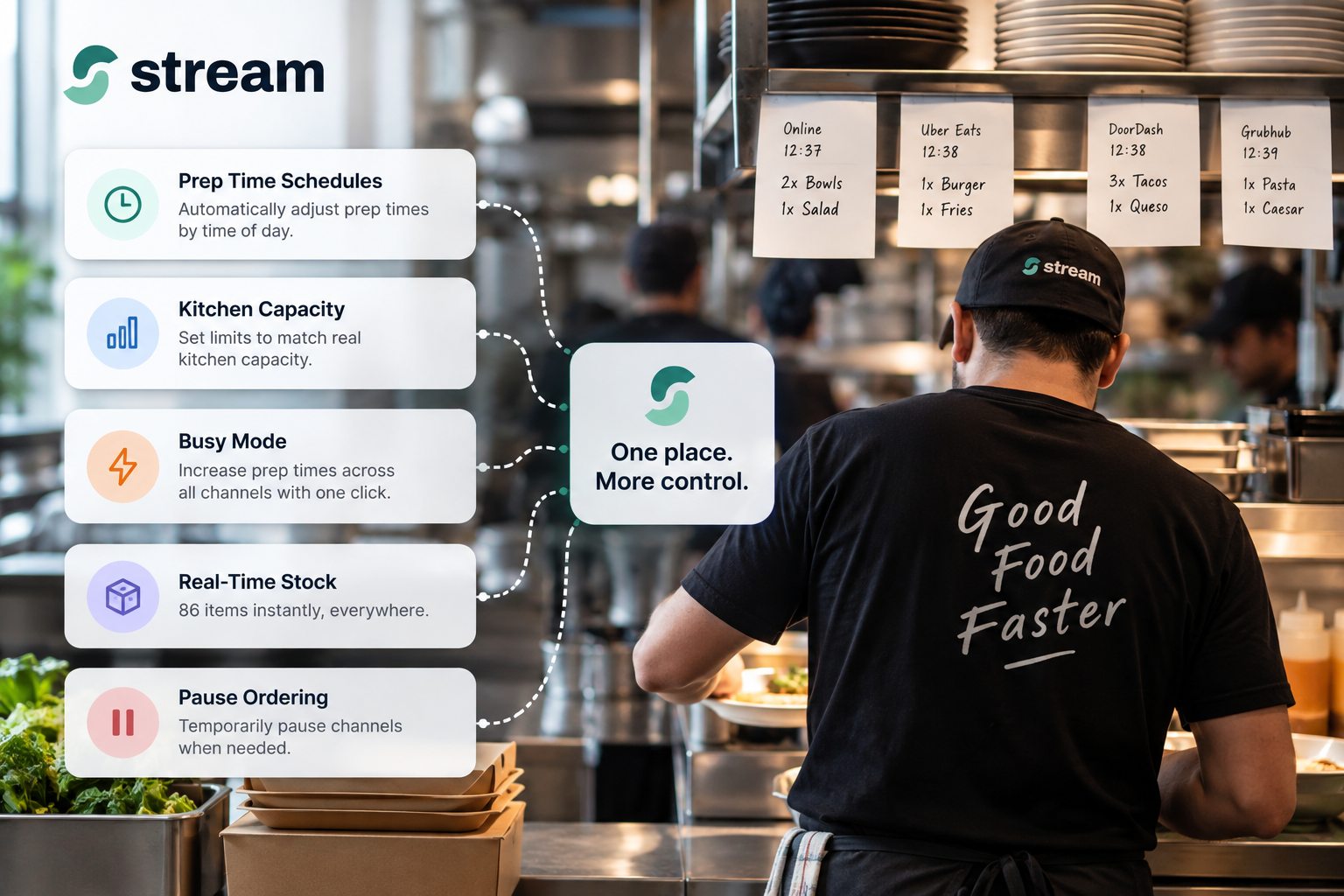
Plan for predictable rushes with Prep Time Schedules
Not every busy period is a surprise.
Friday night, Saturday dinner service, lunch rushes, or recurring events often create predictable spikes in demand.
With Prep Time Schedules, restaurants can automatically use different prep times during known busy periods without someone having to manually make the same adjustment every week.
Set the schedule once, and let Stream handle the change when the rush begins.
Automatically react as demand builds with Kitchen Capacity
Some rushes build gradually.
With Kitchen Capacity, restaurants can define how much their kitchen can realistically prepare within a given period.
As the live order queue approaches that capacity, Stream can automatically adjust prep times to help manage incoming demand.
This becomes especially useful when orders are coming from multiple platforms at once. Rather than treating each ordering channel independently, Stream can help manage demand based on what is actually happening in the kitchen.
Want to set it up? See our step-by-step guide to enabling Kitchen Capacity in the Stream Help Center.

React instantly with Busy Mode
And sometimes, things just get busy.
A sudden wave of delivery orders, a packed dining room, or an unexpected local event can quickly push a kitchen beyond its normal pace.
Busy Mode gives teams an immediate way to respond.
Operators can temporarily increase prep times across supported connected platforms directly from Stream, preview the adjusted times before applying them, and then return to normal once the rush is over.
That gives the kitchen more breathing room without immediately shutting off orders.
Together, these tools create three levels of control:
- Prep Time Schedules for demand you can predict
- Kitchen Capacity for demand building in real time
- Busy Mode for unexpected rushes that need an immediate response
Keep menus aligned with what the kitchen can actually fulfill
Managing demand isn’t only about prep times.
If an item is unavailable, restaurants also need that information reflected across their ordering channels as quickly as possible.
With real-time stock and 86’ing, supported inventory and availability changes can flow through Stream to connected ordering platforms, helping prevent customers from ordering items the restaurant can no longer fulfill.
That means fewer avoidable order issues and less manual work for restaurant teams during an already busy service.
Pause channels without losing control
There are also times when temporarily pausing an ordering channel is the right decision.
Stream’s Pause Permissions give operators more control over who can make those decisions.
Teams can allow certain users to pause a platform for a fixed period while reserving indefinite pauses for trusted roles.
It gives restaurant teams flexibility when they need it, without making it too easy for digital ordering to remain switched off longer than intended.
More control, without more complexity
Managing a busy kitchen shouldn’t mean jumping between multiple tablets, dashboards, and ordering platforms.
Stream brings these controls together so restaurants can better manage how digital demand reaches the kitchen from one place.
The goal isn’t always to stop taking orders.
It’s to take as many orders as the kitchen can realistically handle while protecting the customer experience.
Want to learn more? Explore our step-by-step guide to Busy Mode in the Stream Help Center or speak with the Stream team.